
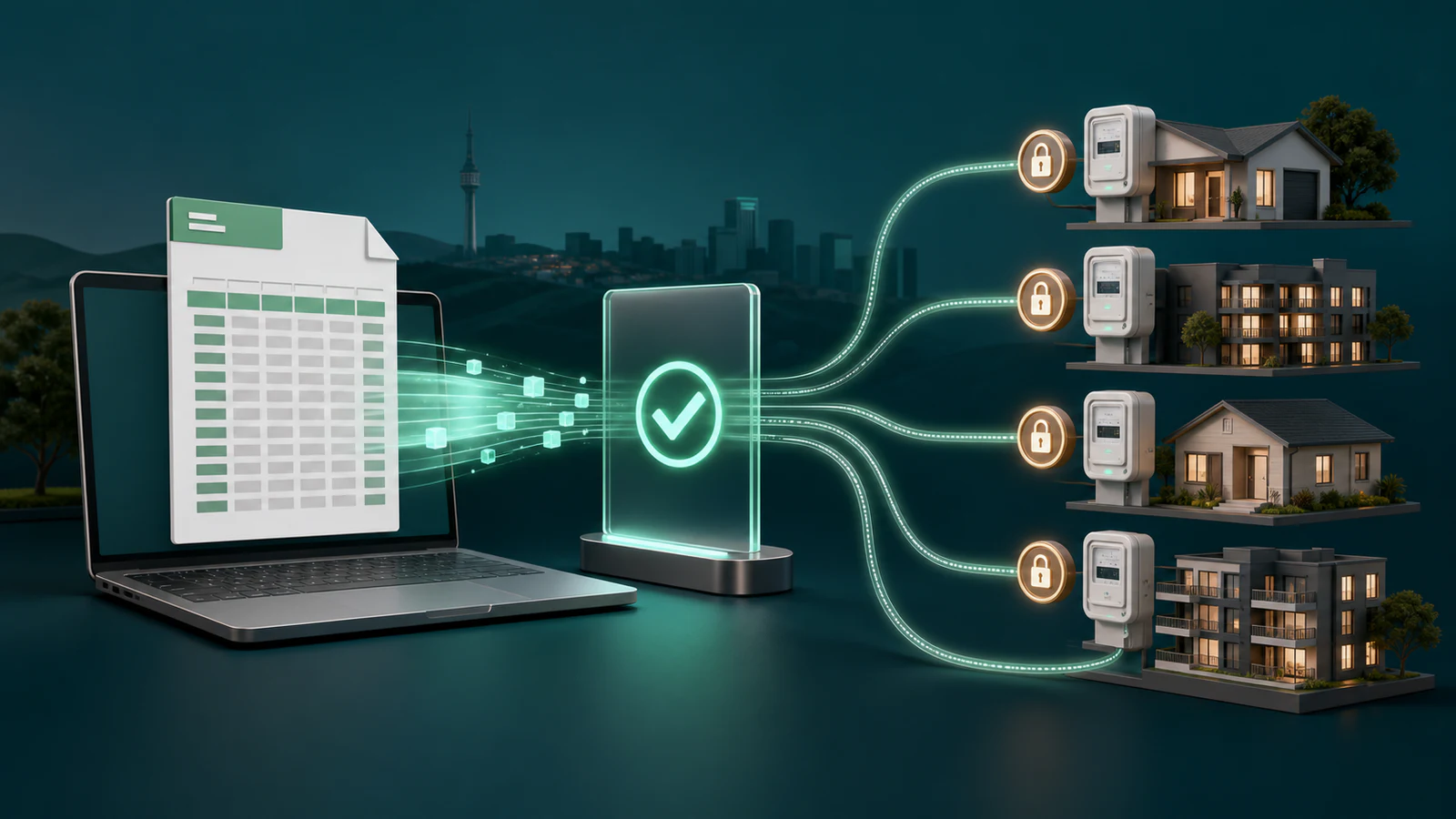
Use SIMcloud’s Bulk Electricity CSV when you need to purchase for several checked prepaid meters. Download the official template, keep the header meter_number,amount,reference,recipient, add one order per row, upload the CSV, review the calculated totals and confirm the batch only when every row is correct.
Successful electricity orders are irreversible. The confirmation screen exists so you can inspect the meter, amount, fee, total, reference and recipient before releasing any rows for processing.
When to use the bulk electricity CSV
The CSV workflow is designed for landlords, managing agents, accommodation operators, branch networks and businesses responsible for multiple prepaid meters. It replaces repeated entry into the single-purchase form but does not remove the need to validate the source data.
Use the CSV when:
- You have more than one meter to purchase for in the same operational run.
- Each meter, amount and recipient has been confirmed.
- You need a named batch and per-row results.
- The wallet can cover the expected total.
- You want a review step before submission.
Do not use it as a way to test unknown meters with real money. Check uncertain meters first using the public meter validation form.
Download and protect the official template
- Sign in and open Electricity → Bulk Electricity CSV.
- Select Download Template.
- Save a clean master copy before entering customer or property data.
- Keep the column names and order exactly as supplied.
meter_number,amount,reference,recipient
01234567890,250.00,Unit 4 July electricity,0821234567
09876543210,500.00,Warehouse main meter,0831234567
The example values above illustrate the shape only. Replace them with confirmed information. Do not upload example rows.
Complete every column correctly
| Column | Required value | Practical guidance |
|---|---|---|
meter_number | The exact prepaid meter identifier. | Format the spreadsheet column as text so leading zeroes are not removed. |
amount | A total amount from R55 to R1,000. | Use a plain number such as 250 or 250.00, without R or thousands separators. |
reference | A non-empty operational reference. | Use the unit, property, tenant, branch or cost centre. Keep it useful in history and reports. |
recipient | A valid South African mobile number. | Use 0821234567 or 27821234567. Verify that the recipient should receive the token. |
SIMcloud limits an electricity CSV file to 2,000 data rows. Split a larger portfolio into clearly named batches and finish one batch before uploading the next.
Keep spreadsheet formatting under control
- Set meter and recipient columns to Text before pasting values.
- Do not use formulas in the final export.
- Remove blank rows below the data.
- Do not merge cells or add title rows above the header.
- If a reference contains a comma, allow the spreadsheet program to quote that field during CSV export.
Upload, review and confirm the batch
- Give the batch a recognisable name such as
July rental meters. - Choose the exported
.csvfile. - Confirm that you checked it and understand that successful rows cannot be reversed.
- Select Upload Electricity CSV.
- On Confirm Electricity CSV Batch, compare the batch name, filename, row count and total billed amount.
- Review every displayed row, including the calculated electricity value and fee.
- Compare the required total with the last known wallet balance.
- Select Confirm Batch only when the data and funding are correct. Otherwise select Cancel Batch.
You can have only one unconfirmed electricity CSV batch waiting at a time. If SIMcloud says a pending batch exists, open and confirm or cancel it before starting another upload.
Balance is checked again during processing. A green confirmation-page message means the last known balance covers the current total; it does not reserve the funds if other orders spend from the wallet first.
Check the batch and individual results
After confirmation, SIMcloud sends you to Electricity CSV Uploads. The accepted rows are processed and also appear in ordinary Electricity History as they complete.
Use both views:
- Batch History for the named upload and row-level submission progress.
- Electricity History for the final voucher, meter details, billing split and purchase status.
- My Electricity Meters for successful meters you want to name, buy again, analyse or schedule.
Investigate failed rows individually. Do not re-upload the entire batch if only a few meters failed, because successful rows may be duplicated. Build a small correction batch containing only verified failures that genuinely need another submission.
Frequently asked questions
What is the exact electricity CSV header?
meter_number,amount,reference,recipient
How many rows can I upload?
The current limit is 2,000 data rows per file.
Can I upload an Excel workbook?
No. Export the completed worksheet as CSV first; the upload validates the .csv extension.
Can I edit the batch after upload?
Review the rows on the confirmation page. If anything is wrong, cancel the pending batch, correct the source file and upload it again.
Where do the tokens appear?
Processed purchases appear in Electricity History, where each row can be opened for its voucher details.