
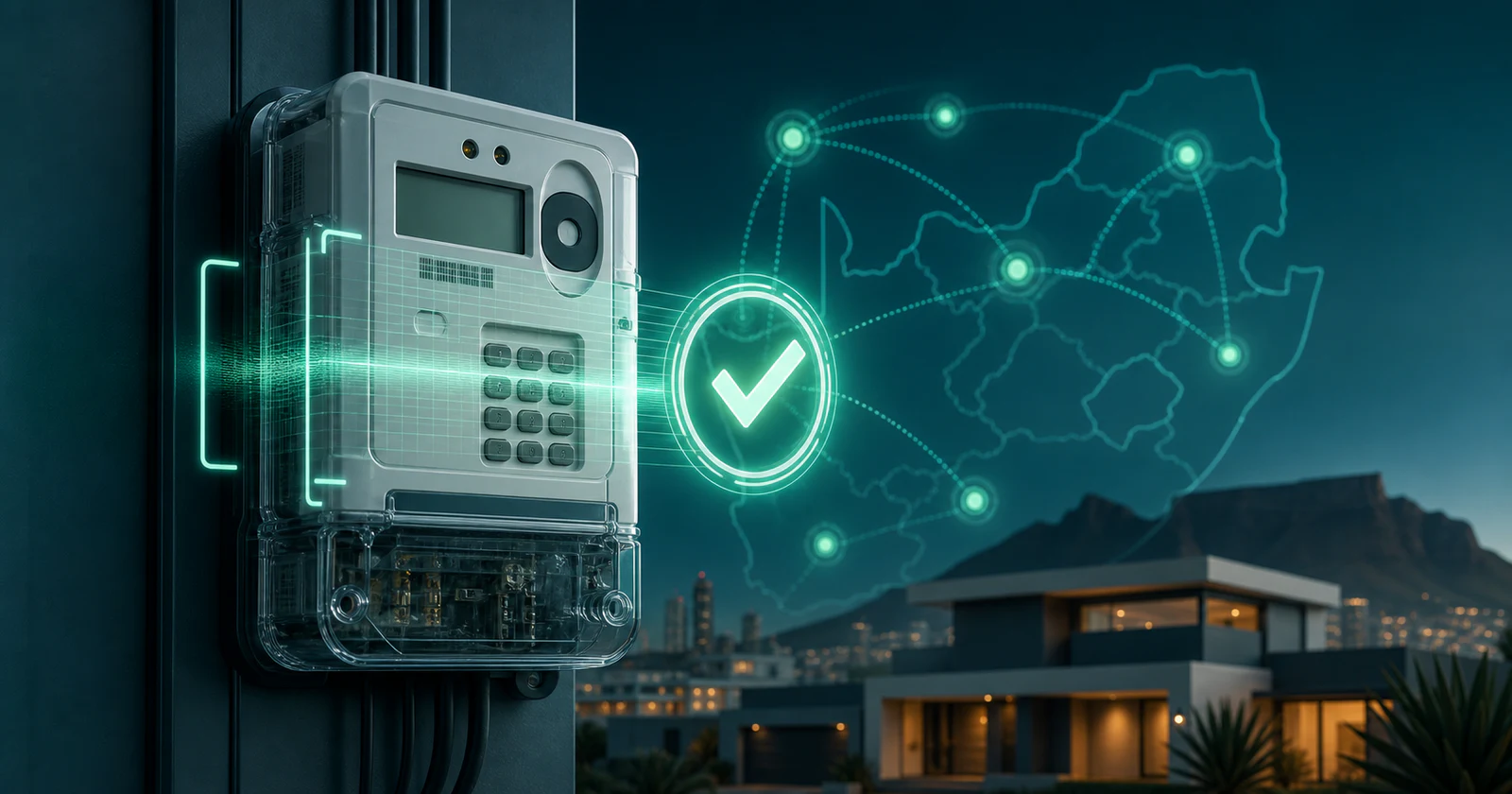
You can check a South African prepaid electricity meter on SIMcloud before registering or placing an order. The public form sends the meter number to the electricity supplier’s validation service and returns whether the meter was confirmed, together with the provider when that information is available.
Use the check before spending: open SIMcloud’s public meter check, enter the requested contact details and the exact meter number, and wait for a supported, unconfirmed or temporarily unavailable result.
Why checking the meter first matters
A prepaid electricity token is generated for one specific meter. Unlike airtime, it cannot simply be moved to another account because the number was typed incorrectly. A successful vending request can also be irreversible.
A pre-check helps you:
- Confirm that the supplier recognises the meter.
- Identify the returned provider where that information is available.
- Catch typing mistakes before funding and ordering.
- Decide whether support needs the municipality, landlord or private-utility details.
- Test a single meter before preparing a multi-meter CSV batch.
Find the correct meter number
Use a source connected to the actual property. Good sources include the meter card, the meter or customer interface unit display, a previous valid token receipt, or a verified property-management record.
Do not assume that a municipal account number, property number or electricity meter number is the same thing. If you have several numbers, compare them with a prior prepaid purchase or ask the municipality, landlord, body corporate or metering company which identifier is used for vending.
Do not post a meter number publicly. Enter it only into the secure SIMcloud form or provide it directly to authorised support when necessary.
Run the SIMcloud meter check
- Open the Prepaid Electricity meter-check section.
- Enter your name. This helps SIMcloud identify the request if support is needed.
- Enter a working email address. The form checks that the email domain can receive mail.
- Enter a valid South African cell number.
- Enter the meter number using letters and numbers only. Remove ordinary spaces or hyphens copied from a formatted document.
- Select Check Meter and wait for the result shown above the form.
The form protects the request against expiry and invalid input. If it says the form expired, reload the page and submit again rather than repeatedly using an old browser tab.
Understand the result
| Result | Meaning | Next step |
|---|---|---|
| We support this meter. | The supplier validation returned a supported result. A provider may also be displayed. | Register or sign in, fund the wallet and use the checked number in Buy Electricity. |
| We could not validate this meter. | The supplier did not confirm the meter. The response message may explain why. | Check the number and provider details before doing anything else. |
| We could not check this meter right now. | The validation service or SIMcloud supplier token was temporarily unavailable. | Wait and retry later. This is not the same as an unsupported meter. |
| Please fix the form. | One or more contact or meter fields failed validation. | Correct the listed field errors and resubmit. |
A successful check is strong evidence that the meter can be used, but the final purchase still depends on the current supplier service, the meter remaining active and the submitted data being correct.
What to do when the meter is not recognised
- Retype it manually. Copy-and-paste can bring hidden spaces from PDFs, email or spreadsheets.
- Compare it with a previous successful token. Make sure you are not using an account or property reference.
- Identify the provider. Record the municipality, private utility, managing agent or landlord system responsible for the meter.
- Ask whether the meter needs activation or an update. This must be handled by the responsible utility or metering provider.
- Contact SIMcloud with useful context. Provide the meter number privately, the provider name, the exact validation message and when the check was attempted.
For a portfolio of meters, test a small representative set before building the entire CSV. A landlord or property team may have meters supplied by different utilities even when the properties are in the same city.
Frequently asked questions
Do I need a SIMcloud account to check one meter?
No. The public meter-check form is available before registration.
Why does the form ask for contact details?
The details identify the lookup request and make it possible to assist if the validation needs follow-up. SIMcloud validates the form before sending the meter request.
Does a supported result buy electricity automatically?
No. The lookup is read-only. You must separately register or sign in, fund the wallet and submit an electricity order.
Can a private prepaid meter be supported?
Many municipal, private utility and sub-metering arrangements are supported, but the supplier response for the specific number is the reliable check.
Can I check multiple meters?
The public tool checks one meter at a time. Register and contact SIMcloud when you need help validating or purchasing for a larger meter list.