
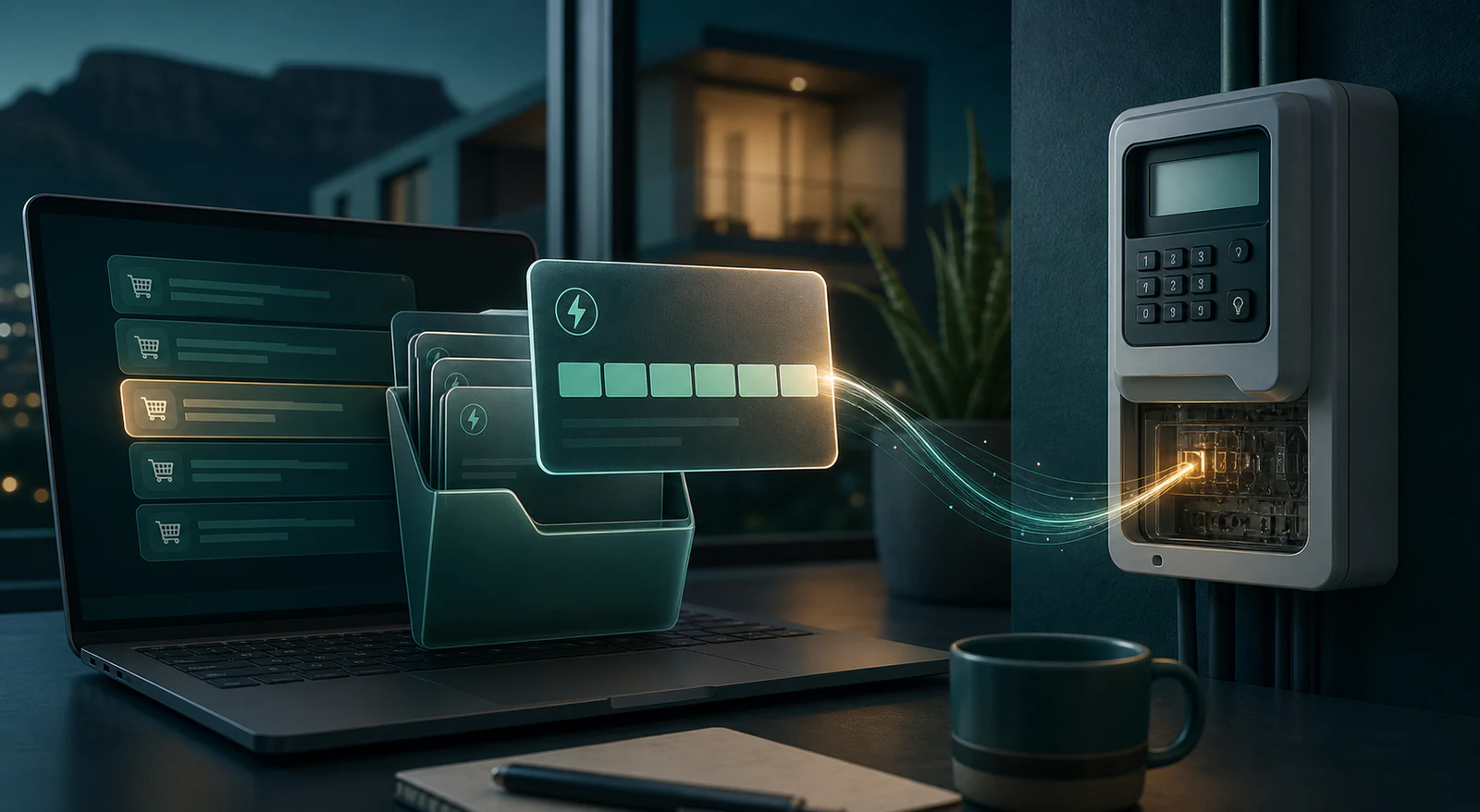
After buying electricity through SIMcloud, sign in and open Electricity → Electricity History. Find the correct meter, reference and purchase date, then select View Voucher Details. When the municipality has completed the order, the page displays the purchase PIN and any required key-change PINs.
Do not buy again just because the PIN is not visible immediately. The order may still be waiting for the municipality. Check its status first to avoid a duplicate purchase.
Where the electricity token appears
SIMcloud keeps the purchase record in Electricity History. The recipient mobile number is collected during the order, but the account history is the reliable place to return to when an SMS is delayed, deleted or sent to another person.
The history page keeps the latest 2,000 electricity purchase records and provides search and export controls. It shows the meter, billed amount, electricity value, service fee, reference, status and purchase date.
Open the correct purchase in Electricity History
- Sign in to the SIMcloud account used for the purchase.
- From the main menu, open Electricity.
- Select Electricity History.
- Use the search box to enter the meter number, reference or other known value.
- Compare the purchase date and amount so you open the right row.
If several business users operate the same account, the Person column helps identify who placed the purchase. The reference should also explain the property, branch, customer or purpose.
Read the status before taking action
The supplier response is asynchronous: SIMcloud can accept and store the purchase before the final voucher arrives. The page asks you to allow roughly 30 seconds for the municipality to provide the details.
| Situation | What it means | Safe action |
|---|---|---|
| The row exists and voucher details open. | The final response is available. | Confirm the meter and copy the PIN or PINs exactly. |
| Voucher details are not available yet. | The order is stored but the last response is still pending. | Wait a few moments, refresh Electricity History and open it again. |
| The details page says Order Failed. | The supplier returned a final failure. | Read the displayed supplier status and contact support if the reason is unclear. |
| No matching row exists. | The submission may not have completed, or you may be in a different account. | Check the account, date and reference before attempting a new purchase. |
Open and use the voucher details
- Select View Voucher Details on the matching history row.
- Check that the displayed meter number is the intended meter.
- Check the utility name, transaction date, amount and recipient.
- Find the Recharge PIN Information section.
- Enter every PIN exactly as displayed. Do not add spaces.
- If key-change PINs are shown, enter them in the stated order before the normal purchase or free-units PIN.
The page can show more than one PIN block. Each block includes a descriptor, PIN and units. The descriptor tells you whether it is a purchase PIN, free-units PIN or key-change step.
Useful habit: name the meter under My Electricity Meters after a successful purchase. A label such as Warehouse main meter is easier to recognise than a long number when buying again.
What to do when the token is missing or rejected
The order is still pending
Wait before placing another order. Reopen Electricity History after a short interval. Supplier delays do not necessarily mean the order failed.
The token was sent to the wrong mobile number
Use Electricity History to retrieve it from the account. Before the next purchase, correct the recipient number on the purchase form or recurring schedule.
The meter rejects the token
Confirm that the token belongs to the displayed meter and check whether key-change PINs were supplied. Enter the PINs in their displayed order. If the meter still rejects a correct token, record the exact meter message and contact the utility or SIMcloud support.
You cannot find the purchase
Check that you signed in to the same account used to place it. Search by the exact meter and compare the wallet activity, reference and date. Do not create a second order until you know whether the first one exists.
Frequently asked questions
Can I recover a deleted electricity-token SMS?
Yes, if the purchase was made through your SIMcloud account. Open Electricity History and view the voucher details.
How long should the token take?
The page advises allowing around 30 seconds, but external supplier or municipality delays can take longer. Check the stored order status rather than immediately purchasing again.
Why are there several 20-digit PINs?
The meter may require key-change PINs before the purchase PIN. SIMcloud displays an important warning and the individual PIN descriptors when these are returned.
Can another business user see the token?
Authorised users operating the same business account may be able to access its electricity history, depending on their account permissions.
Can I export electricity history?
Yes. The history table includes copy, spreadsheet, CSV and PDF export controls for reconciliation.