
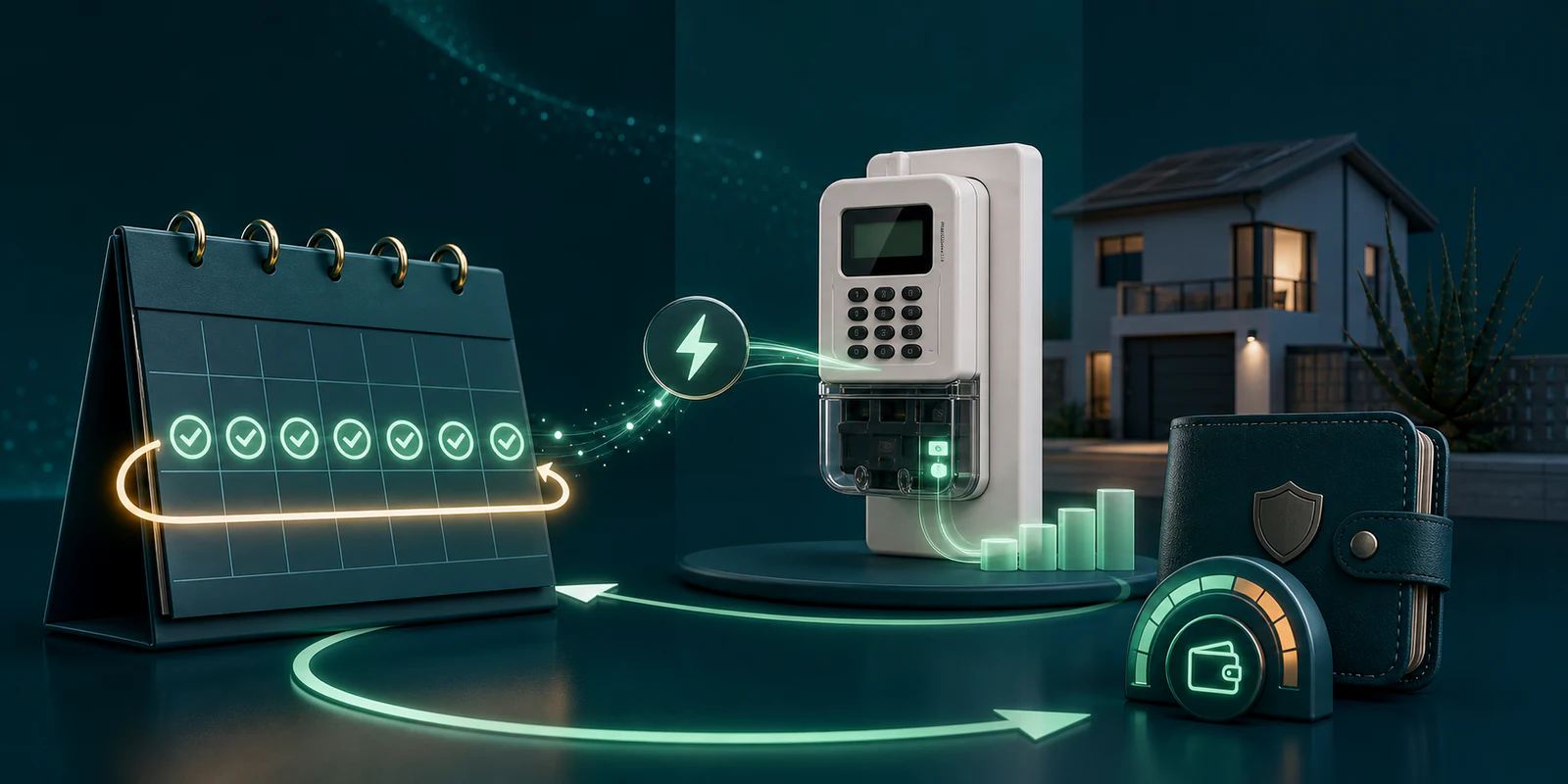
SIMcloud recurring electricity creates a monthly schedule for one meter. You choose the meter, total amount, recipient, monthly recharge day and end date. Creating the schedule does not buy electricity immediately; the recurring processor submits it on the calculated run date while the schedule is active.
Best use: recurring electricity is useful when the same meter needs a planned purchase every month, but you still want a fixed end date, visible history, balance warnings and a manual retry path if an order fails.
How recurring electricity works
A recurring schedule stores the purchase instructions and calculates the next run date. On that date, SIMcloud attempts the electricity order using the wallet and supplier service available at the time.
- The schedule stays active only until its end date.
- If you select the 29th, 30th or 31st and a month is shorter, the purchase runs on that month’s last day.
- Future edits affect future runs; they do not change completed purchases.
- Every successful scheduled purchase creates an ordinary electricity-history record.
- A failed schedule keeps its error so the problem can be corrected and retried.
Before you create the schedule
- Make at least one successful purchase for the meter if you want to start from My Electricity Meters.
- Give the meter a recognisable name.
- Choose a monthly amount between R55 and R1,000.
- Choose a day that leaves time to react if funding is short.
- Choose an end date that matches the tenancy, project, lease or budget period.
- Use a recipient number that will remain monitored.
The amount entered is the total billed amount. SIMcloud calculates the electricity value and service fee when saving the schedule.
Create a recurring electricity order
You can open the form from Electricity → Recurring Electricity, or select Set Recurring beside a successfully recharged meter under My Electricity Meters.
- Enter the meter number. When you start from My Meters, this may already be filled in. Confirm it anyway.
- Enter the amount. Use a value from R55 to R1,000.
- Add a reference. Use a stable label such as
Unit 12 monthly electricity. - Enter the recipient cell number. This must be a valid South African mobile number for the token.
- Select the monthly recharge date. Choose the 1st through the 31st.
- Select an end date. It must be on or after the first calculated recharge date.
- Confirm the details. The checkbox confirms the meter, amount, recipient, run day and end date.
- Select Create Recurring Order. SIMcloud displays the first recharge date after saving.
No purchase happens at setup. If you need electricity today, place a normal Buy Electricity order as well. Do not assume creating the monthly schedule has credited the meter.
Wallet balance warnings and manual retries
The wallet must cover the schedule’s total billed amount when it runs. SIMcloud can warn the account before a scheduled purchase when the balance is too low, including three-day and one-day warning points.
When a recurring attempt fails:
- Open Recurring Electricity.
- Read the last error on the affected active schedule.
- Correct the cause. For insufficient balance, top up and wait for the wallet to reflect.
- Select Retry Now only when the schedule is active and still shows an error.
- Check the resulting electricity purchase in Electricity History.
A failed manual retry does not silently advance the schedule as though it succeeded. The error remains available for another correction or support investigation.
Edit, monitor or cancel a schedule
The Active Schedules section allows you to update the meter, amount, reference, recipient, day and end date for future runs. Saving recalculates the next run date and clears the old failure state so the edited instructions can be used.
Cancel the schedule when the property changes hands, the project ends or the purchase is no longer required. Cancellation stops future runs but preserves the completed electricity purchases already stored in history.
| Review point | Recommended check |
|---|---|
| Three days before run | Confirm the wallet covers the total billed amount. |
| One day before run | Respond immediately to any low-balance warning. |
| On the run date | Check the schedule status and Electricity History. |
| After a failure | Correct the recorded cause before using Retry Now. |
| Before lease/project end | Confirm or shorten the end date, or cancel the schedule. |
Frequently asked questions
Does creating a schedule buy electricity immediately?
No. The form explicitly creates instructions for the selected future monthly date.
What happens if I choose the 31st?
In a shorter month, SIMcloud calculates the run for that month’s final day.
What if the wallet is too low?
The order cannot succeed without enough balance. SIMcloud can send advance warnings, and an active failed schedule can be retried after funding.
Can I edit the amount later?
Yes. Changes apply to future monthly runs and recalculate the billing details.
Can I stop recurring electricity?
Yes. Cancel the active schedule from the Recurring Electricity management page.