
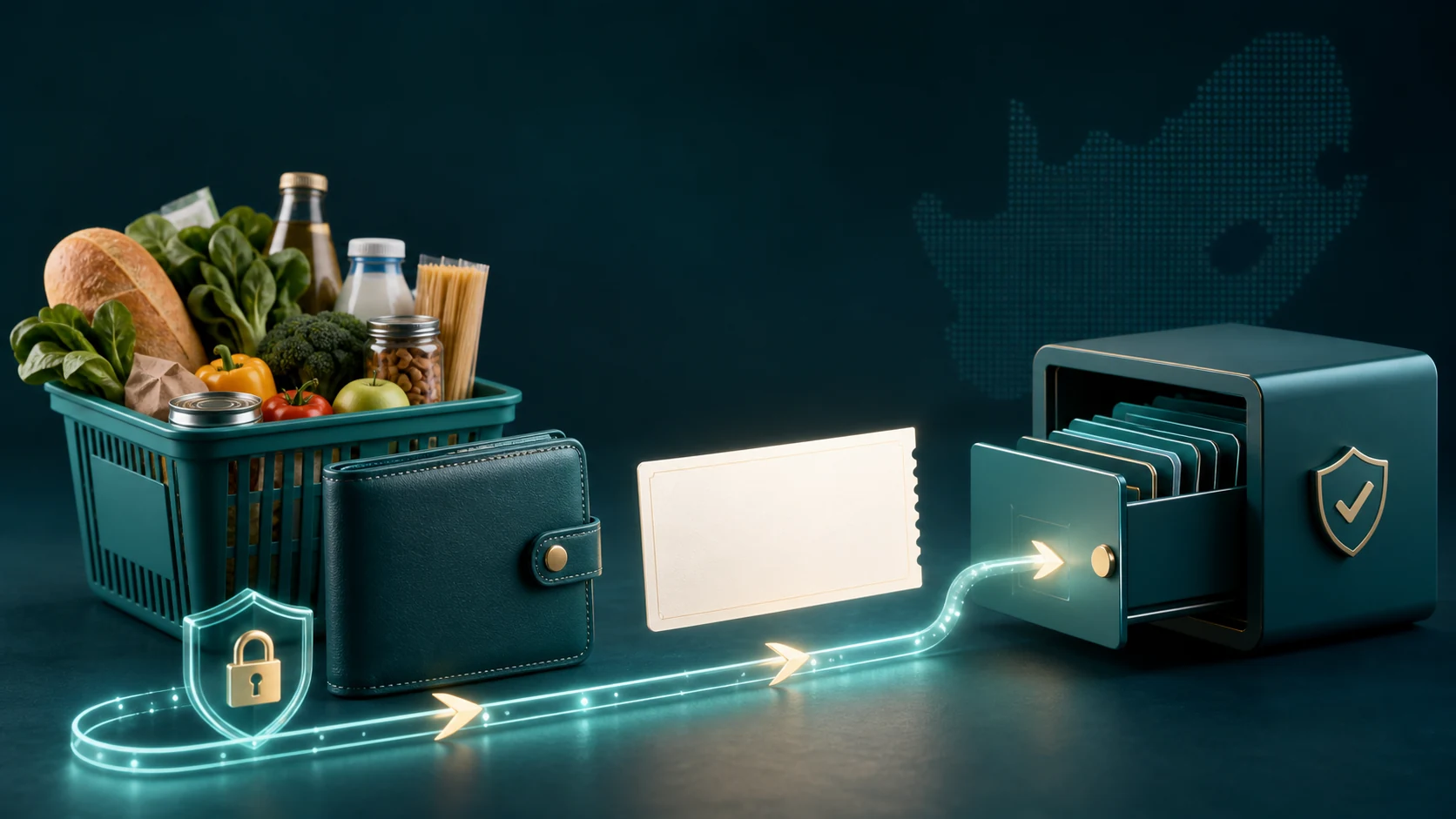
You can buy a Checkers digital voucher through SIMcloud from the Gift Cards section of a funded account. The current catalogue determines whether Checkers is available and which voucher amounts can be ordered. After you place the order, SIMcloud processes it and stores the completed voucher in Voucher History.
Use the live catalogue. Voucher availability and denominations can change. Choose the Checkers product and amount displayed in your SIMcloud account instead of relying on an old product ID, screenshot or saved price list.
What you need before buying
- A registered SIMcloud account.
- Enough available wallet balance for the voucher value and any displayed fee.
- A useful reference such as the recipient name, staff number, campaign name or purchase-order number.
- A secure way to deliver the completed voucher code to the intended recipient.
A Checkers voucher is a value-bearing product. Confirm the recipient and amount before submitting it, because a successfully issued digital voucher cannot simply be recalled like an unsent email.
Find the live Checkers voucher
- Sign in to SIMcloud.
- Open Gift Cards from the customer menu.
- Use the catalogue search field and enter Checkers.
- Confirm that the product is currently available.
- Open the Checkers voucher card to see the amounts currently offered.
If the product does not appear, do not substitute a similarly named product without checking. The supplier catalogue can distinguish Checkers, Shoprite, USave and other voucher types even when they belong to related retail groups.
Buy the Checkers voucher step by step
- Select one of the available voucher amounts.
- Enter a reference that will make sense when you review the order later.
- Check the voucher amount, any fee, the total to bill and the projected wallet balance.
- If the balance is insufficient, top up the wallet or choose a smaller available amount.
- Select Place Voucher Order once.
- Wait for the order to move through processing instead of submitting it again.
Do not double-click or repeat a pending purchase. A voucher order may take time to complete. Open Voucher History and check the original order before trying again.
Find and deliver the voucher safely
After submission, SIMcloud redirects you to the voucher history flow. The order record keeps the product, amount, reference, processing status and billing result together. When processing succeeds, open the completed order to retrieve the voucher details returned by the supplier.
Before sharing the voucher:
- Confirm that the order status is successful.
- Confirm that the voucher type and value match the intended purchase.
- Copy the code carefully and send it only to the intended recipient.
- Share any supplier redemption or expiry information returned with the voucher.
- Keep the SIMcloud reference for reconciliation, but never put the voucher code in an ordinary shared spreadsheet.
Common Checkers voucher problems
| Problem | What it means | What to do |
|---|---|---|
| Checkers is not listed | The live supplier catalogue is not currently returning the product. | Check again later or contact SIMcloud support. Do not promise a voucher before availability is confirmed. |
| The amount is unavailable | The selected value is not one of the live denominations. | Return to the product and select an amount displayed by SIMcloud. |
| Insufficient balance | The wallet does not cover the displayed total. | Top up or select a smaller live denomination. |
| Order is pending | The supplier result is not final yet. | Wait and refresh Voucher History; do not create a replacement order. |
| Order failed | Local or supplier processing did not complete successfully. | Read the order status and contact support with the order ID and your reference. |
Buying Checkers vouchers for staff or customers
For a once-off voucher, use the single-product flow above. For many recipients, use SIMcloud’s bulk Gift Card CSV workflow instead of repeating the form manually. A controlled batch lets you prepare one row per recipient, validate amounts, review the total and reconcile individual results.
Developers building a rewards or grocery-support platform can use the SIMcloud VAS API. Fetch the live catalogue first, resolve Checkers by its returned product or slug, submit the chosen live amount and persist the returned order reference before polling for completion.
Frequently asked questions
Can I buy a Checkers voucher online through SIMcloud?
Yes, when Checkers is active in the live Gift Cards catalogue and your wallet covers the displayed total.
Where does the Checkers voucher appear?
Open Voucher History and then the successful order to view the voucher details returned by the supplier.
Can I choose any rand amount?
No. Choose one of the amounts currently displayed for the Checkers product.
Can I buy Checkers vouchers in bulk?
Yes. Use the bulk Gift Card CSV workflow for multiple voucher rows and recipients.
How do I redeem the voucher?
Follow the redemption and expiry information supplied with the completed voucher. SIMcloud should not replace the retailer’s current voucher terms with guessed instructions.