
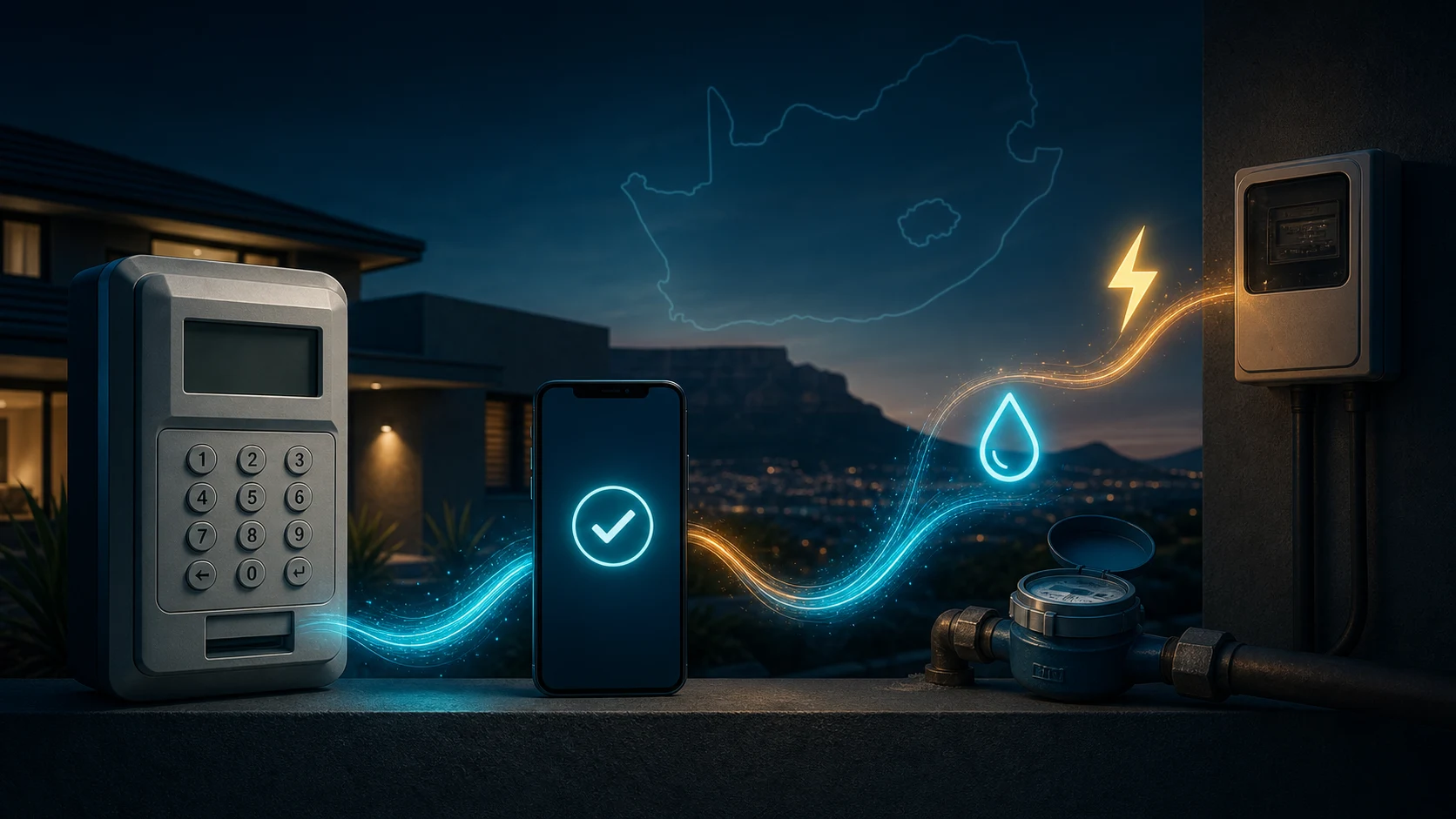
You can buy prepaid water through SIMcloud. The same prepaid utility service handles supported prepaid water and prepaid electricity meters, even though the current portal places both purchases under Electricity.
This is easy to miss. People understandably look for a separate Water menu, do not find one and assume the service is unavailable. The important identifier is the prepaid meter number, not the label on the menu.
Quick answer: check your prepaid water meter, register or sign in, choose Electricity → Buy Electricity, enter the water meter number and complete the purchase. SIMcloud identifies the water provider from the meter number and returns the correct prepaid water token.
Why prepaid water can appear under an electricity menu
SIMcloud uses one prepaid utility-vending flow for supported water and electricity meters. The meter number identifies the provider, utility and tariff behind the purchase. When you enter a supported prepaid water meter number, the supplier processes a water purchase and returns a water token.
Electricity and water are still separate utilities, measured in different units and delivered through different physical meters. What they share is the SIMcloud purchase path. The Electricity label describes where the feature currently sits in the portal; it does not limit the service to electricity.
You are not loading water onto an electricity meter. You are using a utility-vending channel to buy credit for a separate prepaid water meter.
Which prepaid water meters work with SIMcloud?
SIMcloud supports prepaid water meters that are registered on our utility-vending network. This includes supported municipal and private prepaid water meters across South Africa.
An ordinary postpaid municipal water account is not a prepaid meter and cannot be paid by entering its account number as though it were a meter number. Some closed private-meter systems may also require their own purchasing channel.
Coverage is confirmed against the exact meter number because a provider can operate more than one meter or vending configuration. Use SIMcloud's meter check to confirm the specific water meter before buying.
Do not test support by making a small purchase. Run the meter check first. If the result is not supported, stop before funding or submitting an order.
Step 1: check the prepaid water meter
SIMcloud's public meter check is on the Prepaid Electricity page. You do not need to fund an account to run this check.
- Find the actual water meter number. Use the number printed on the water meter, keypad, meter card or a previous valid water token. Do not use the property's electricity meter number or municipal account number.
- Open the meter check. Complete the name, email and South African cell-number fields.
- Enter the water meter number. Copy it carefully and remove accidental spaces or punctuation.
- Select Check Meter. Wait for the supplier response rather than submitting the form repeatedly.
- Read the result. Continue when SIMcloud says We support this meter. The result can also identify the provider.
If the meter is not recognised, compare the number with a previous water-token receipt. If it is correct, ask the property manager, municipality or meter provider which vending network handles that meter. A water meter installed at the property is not automatically available through every online vendor.
Step 2: buy prepaid water through SIMcloud
Once the exact water meter has passed the check, create a SIMcloud account or sign in and make sure the wallet has enough available balance.
- Open Electricity → Buy Electricity. This is the current SIMcloud utility purchase form used for the supported water meter as well.
- Enter the checked water meter number. The meter number is what routes the order to the registered water provider.
- Choose the amount. The current single-purchase form accepts a total amount from R55 to R1,000.
- Add a clear reference. Use wording such as
Unit 12 water,Office water meteror the property name. This prevents a water purchase from being mistaken for electricity in reports. - Enter the recipient's cell number. Use the number of the person who should receive or manage the token.
- Check the meter number again. Compare it with the physical water meter or a previous valid receipt before paying.
- Submit once. Wait for the order to appear in Electricity History. Do not buy again merely because the final supplier response is not immediate.
The portal still uses labels such as electricity amount, electricity history and electricity token. Those labels describe the existing SIMcloud product area, not the physical utility that the checked water meter will dispense.
What you receive after the purchase
SIMcloud sends the order to the utility-vending supplier and redirects you to Electricity Purchase History. When the order reaches a successful final state, open View Voucher Details to see the returned token and utility information.
Depending on the water-meter system, the token may add a volume of water, commonly displayed in kilolitres or cubic metres, or apply a currency credit that the meter converts at the provider's tariff. One kilolitre and one cubic metre both equal 1,000 litres.
The amount of water returned is controlled by the utility's current tariff and rules, not by SIMcloud. Service charges, stepped tariffs, free-basic-water allocations or authorised arrears recovery may affect what appears on a token for a particular provider. Review the returned voucher instead of assuming that the same rand amount always buys the same water volume.
| Part of the process | Prepaid electricity | Prepaid water |
|---|---|---|
| Identifier | Electricity meter number | Water meter number |
| What the token adds | Electricity credit or kWh | Water credit, kL or m³ |
| SIMcloud menu | Electricity → Buy Electricity | Currently the same utility purchase form |
| Support decision | Exact meter check | Exact meter check |
| Purchase record | Electricity History | Currently Electricity History |
Common prepaid water problems
The water meter is not supported
Do not substitute another number or try the property's electricity meter. Confirm the water provider and ask which channels can vend for that exact meter.
The purchase shows under Electricity History
That is expected in the current SIMcloud portal. Use a water-specific order reference and confirm the utility or provider shown in the voucher details.
The token is still pending
A submitted order can wait for a final supplier response. Check the existing order before trying again. A second purchase can create a second valid token and a second charge.
The water meter rejects the token
Compare the meter number on the voucher with the physical water meter and enter every digit in order. If the numbers match, record the exact meter message and contact the responsible water-meter provider or SIMcloud support. Do not keep buying replacement tokens.
The token buys fewer units than expected
Check the tariff, unit of measure and any deductions printed in the voucher details. Water tariffs differ by provider and can change over time. The vending channel does not set the underlying water tariff.
Frequently asked questions
Can I buy prepaid water through SIMcloud?
Yes. Check the prepaid water meter number, then use SIMcloud's utility purchase flow to buy the water token.
Why do I choose Buy Electricity for a water meter?
SIMcloud currently uses one utility-vending flow and labels it Electricity. The checked meter number identifies the registered water utility and routes the purchase accordingly.
Can I enter my municipal water account number?
No. Use the prepaid water meter number. A postpaid municipal account number is not interchangeable with a prepaid meter number.
Will any prepaid water meter work?
No. The meter must be registered with a provider available through the supplier network. Run the SIMcloud meter check for the exact number.
Where will I find my water token?
In the current portal, open Electricity History and then View Voucher Details for the relevant order. Use a clearly water-related reference so the purchase is easy to recognise.
Can SIMcloud install a prepaid water meter?
This article covers buying credit for an existing supported meter. Meter installation, registration, tariffs and physical maintenance remain the responsibility of the municipality, property manager or metering provider.
Ready to buy prepaid water? Check your water meter number, then complete the purchase through SIMcloud.