
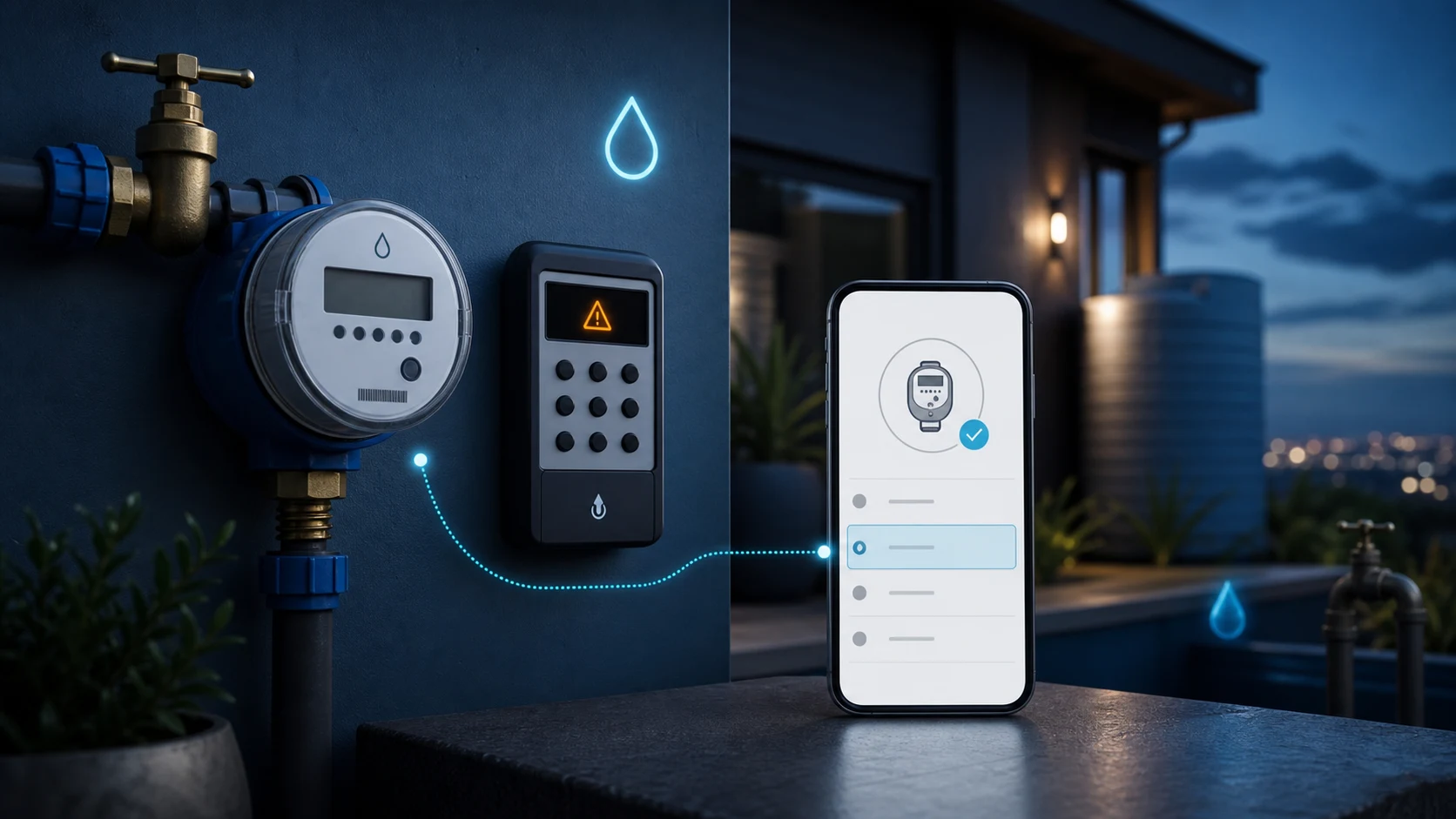
A prepaid water token that is rejected, missing or apparently accepted without restoring water does not automatically mean you must buy again. First identify whether the problem is the SIMcloud order, the token, the keypad or the physical water supply.
SIMcloud keeps the meter number, reference, order status and returned voucher together. Use that record before taking another action. A second purchase can create a second valid token and a second charge without fixing the original problem.
Do not buy another water token yet. Open the original purchase in SIMcloud, confirm its status and compare the displayed meter number with the physical prepaid water meter.
First identify where the problem is
“My water token is not working” can describe several completely different situations. Choose the row that matches what you can see.
| What you see | Where to start | Do not do this |
|---|---|---|
| No token is visible in SIMcloud yet. | Check whether the order is still pending or failed. | Do not submit a second purchase while the first order is unresolved. |
| The water meter says invalid or rejected. | Compare the token's meter number with the physical water meter, then re-enter the token once. | Do not keep guessing digits or use a token from another meter. |
| The meter says used or duplicate. | Check the meter's current credit and ask whether someone already loaded the token. | Do not assume the purchase disappeared. |
| The keypad says failed or cannot connect. | Treat it as a keypad-to-meter communication problem. | Do not buy another token; a new token cannot repair the connection. |
| The token was accepted but there is still no water. | Check the credit, valve status, local water supply and possible leak. | Do not interfere with the physical meter or valve. |
Step 1: check the original SIMcloud order
If you bought the token through SIMcloud, the account history is the authoritative record of what was submitted and what the utility-vending supplier returned.
- Sign in to the SIMcloud account used for the purchase.
- Open Electricity → Electricity History. Prepaid water purchases currently use the same utility history.
- Search for the water meter number or the water-specific reference used during the purchase.
- Compare the amount and purchase date so you select the correct row.
- Read the order status.
- Select View Voucher Details when the action is available.
- Confirm the meter number and utility information before copying any PIN.
If you cannot find the purchase, confirm that you are signed in to the same SIMcloud account that placed it. Search by the exact meter number and date before concluding that the order is missing.
If the water token is not visible yet
A SIMcloud utility order can be stored before the final supplier response arrives. This creates a short period where the purchase exists but the voucher details are not ready.
The order is pending
Wait and reopen the same order. The history page advises allowing a few moments for the municipality or utility provider to return the voucher. Pending does not mean that you should purchase again.
The order failed
Read the displayed failure information and use the existing order reference when contacting SIMcloud support. A failed order is different from a completed order whose token is rejected by the physical meter.
The SMS did not arrive
Use Electricity History → View Voucher Details. The SIMcloud account record remains available even when an SMS is delayed, blocked, deleted or sent to the wrong recipient.
The safe rule: resolve the state of the existing order first. Only place another purchase when you know the first order did not produce a valid token.
If the water meter rejects the token
1. Confirm that the token belongs to this water meter
Prepaid utility tokens are issued for a specific meter. Compare the meter number in SIMcloud's voucher details with the number on the physical water meter, keypad, meter card or a previous valid water-token record.
If one digit differs, stop. The token belongs to the meter number used during the purchase and will not load onto a different water meter. Keep the SIMcloud order reference and contact support instead of repeatedly entering it.
2. Re-enter the token once, slowly
Clear the keypad entry and type the PIN again in the exact order shown. Read the digits in small groups, but do not enter spaces or punctuation. If the same message appears again, record it and move to the next check.
3. Make sure you are entering the water credit PIN
Some utility responses can contain more than one PIN or instruction. Use the descriptor shown in SIMcloud and follow the displayed order. Do not substitute an electricity token, an old token from the same property or a PIN belonging to another purchase.
4. Read the meter's exact message
Water-meter wording varies, but the message normally tells you which kind of problem to investigate:
- Invalid or rejected: check the digits, meter number and token type.
- Used or duplicate: the meter has already processed that token.
- Old: the meter will not accept the token in its current sequence or configuration.
- Full, over or limit: the new credit would exceed the meter's allowed balance.
- Locked or closed: the meter or valve needs attention from the responsible utility or metering provider.
Do not search for universal reset codes. Water-meter commands and error codes differ by model and configuration. Record the complete display message and use the instructions supplied for that specific meter.
If the keypad says failed or cannot connect
The keypad—also called the customer interface unit—must communicate with the installed water meter. A valid token cannot load while that connection is failing.
- Move the keypad to the normal operating position or closer to the water meter, if it is a portable unit.
- Remove obvious temporary obstructions between the keypad and meter.
- Check the keypad display and its power or user-replaceable batteries according to the meter instructions.
- Try the same valid token again only after the keypad reconnects.
- If communication still fails, report the meter number and exact display message to the party responsible for the physical meter.
Do not open, bypass or force the water meter or valve. SIMcloud supplies the vending record and token; physical meter faults must be handled by the responsible utility, property manager or metering technician.
If the token is accepted but there is still no water
An accepted token proves that the meter processed the credit. It does not prove that water is physically available at the property.
Check the displayed balance
Confirm that the meter shows positive water credit after loading the token. Read the unit carefully: water credit may be displayed in litres, kilolitres or cubic metres.
Check whether the area has water
Ask whether neighbouring properties have supply. A municipal interruption, closed main valve or building-level plumbing problem will not be fixed by buying another prepaid token.
Check for a leak
Close all taps and water-using appliances, then observe whether the meter still shows consumption or a leak warning. A running toilet, underground pipe leak or faulty valve can use credit while the property appears quiet. Report a suspected leak promptly.
Check the meter or valve status
If the display says locked, closed, battery low or shows another device warning, record it exactly. The physical meter administrator must diagnose that condition.
What to have ready for support
A complete support request is much faster to investigate than “my token does not work.” Prepare:
- The prepaid water meter number from the physical meter.
- The SIMcloud order reference.
- The purchase date, time and amount.
- The order status shown in Electricity History.
- The utility name displayed in Voucher Details.
- The exact message shown by the water meter or keypad.
- A clear photo of the display, if one is available.
- Whether the token is missing, rejected, used, accepted or blocked by a communication failure.
Do not post the full token publicly or send it to an unverified contact. Keep it with the private SIMcloud order record and share it only through the correct support channel.
Frequently asked questions
Why does my prepaid water meter say invalid token?
The PIN may have been entered incorrectly, issued for a different meter number or supplied for a different utility or token type. Compare the SIMcloud voucher details with the physical water meter before entering it again.
Why does the meter say the token was already used?
The meter has already processed that token. Check the current water balance and ask whether someone else at the property loaded it.
Can I use a prepaid water token on another meter?
No. The token is tied to the meter number used for the purchase.
Should I buy another token if the first one is pending?
No. Check the existing order until it reaches a final status. A second purchase can create a duplicate charge and another valid token.
Where do I retrieve a prepaid water token bought through SIMcloud?
Sign in, open Electricity History, find the water-meter purchase and select View Voucher Details.
Can SIMcloud repair a water meter or keypad?
SIMcloud keeps the purchase and token record. Physical meter, keypad, valve, battery and plumbing faults must be handled by the responsible utility, property manager or metering technician.
Prevent the next token problem: check the water meter and follow the SIMcloud prepaid-water purchase guide before submitting the order.